Servoterm #
Servoterm (servo terminal) provides an interface which allows editing of the drive HAL configuration. It also provides a rolling graphical representation of any chosen parameter in the HAL, which can be a great aid to tuning and motor setup.
Servoterm is now available as a C++ application. You can download it from this GitHub repository.
Installation #
To install Servoterm, follow these steps:
Clone the repository:
git clone https://github.com/STMBL/QtServoterm.gitNavigate to the project directory:
cd QtServotermInstall the dependencies. Servoterm needs Qt5 with the Widgets, SerialPort and Network modules. On current Debian or Ubuntu, for example:
sudo apt install qtbase5-dev libqt5serialport5-dev(The QtServoterm README names
qt5-default, which only exists on older releases such as Ubuntu 18.04.)Build the application using qmake and make (a CMake build with the included
CMakeLists.txtalso works):qmake makeRun the application:
./Servoterm
Connecting to STMBL #
To connect to the STMBL, you will need a USB C cable.
Be sure that the 24V PSU is floating or shares a ground reference with the PC.
(Maybe even check the voltage between the connector and socket before inserting the plug.)
You can then click the “connect” button and you should get something like the image below.
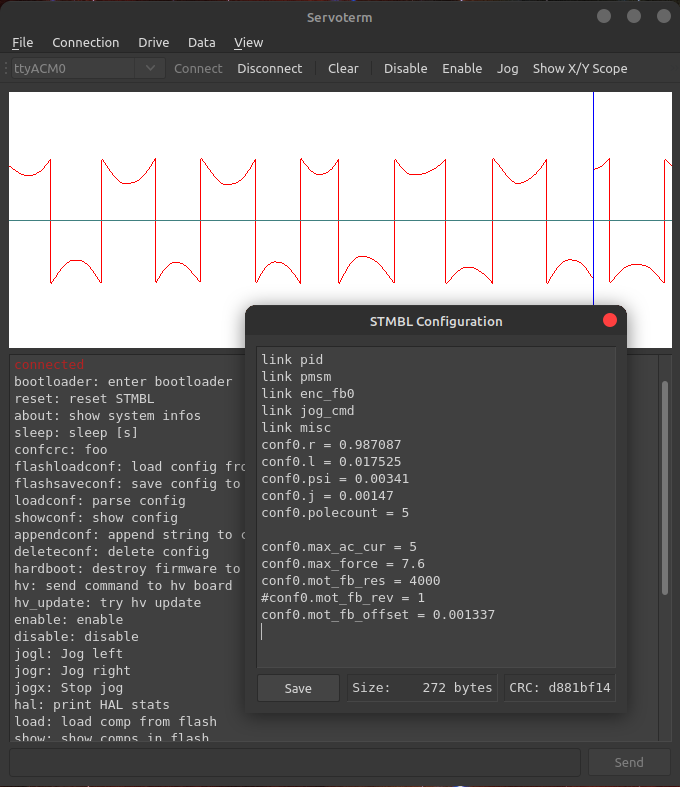
Servoterm Interface #
The toolbar, from left to right:
- Port list - a drop-down list to select the serial port of the drive.
- Connect / Disconnect (Connection) - open or close the serial connection.
- Clear - clears the console text. The scope is not cleared.
- Disable / Enable (Drive) - Disable sets
fault0.en = 0. Enable setsfault0.en = 0and thenfault0.en = 1, which also clears a soft fault. Neither reboots the STMBL. To reboot the drive, typereset(see Servoterm Commands). - Jog (Drive) - when ticked, the left and right arrow keys on the keyboard jog the motor. It sends the
jogl,jograndjogxcommands, which only exist when thejogcomponent is loaded, so Jog needslink jog_cmdin the config. - Show X/Y Scope (View) - shows or hides the XY scope next to the graph.
- Config (Drive) - opens a window in which the drive config can be edited and saved (see Saving a config).
The Esc key is an emergency stop: it unticks Jog and sends fault0.en = 0.
Menus: Record is only in the Data menu. It saves the scope data to a CSV file.
Esc, Disable and Enable set
fault0.ento a constant value, and setting a pin to a value removes its link. Withlink sserial, this breaks the linkfault0.en = sserial0.enable, so LinuxCNC can no longer enable or disable the drive. Do not use Enable, Disable or Esc on a drive that is run by LinuxCNC. If you did, typeresetto reload the config.
Other than the buttons described above, the remainder of Servoterm (and the STMBL HAL) is controlled by a command-line interface at the bottom. Servoterm uses the up and down arrow keys to scroll through previous commands, but there is no tab-completion. The basic syntax is:
<comp><n>, for exampleterm0, lists all pins of that component instance.<comp><n>.<pin> = <value>sets a pin to a value. If the pin was linked, the link is removed.<comp><n>.<pin> = <comp><n>.<pin>links the first pin to the second, so it follows its value.- In the output,
<=marks a linked pin:term0.wave0 <= reslimit0.pos_outmeans that wave0 followsreslimit0.pos_out.
Typed lines can be up to 127 characters. A longer line is dropped whole and the drive answers line too long. Component and pin names are read up to 63 characters each.
More is described in the
HAL section. The graphing display is controlled by the “term0” interface. Typing term0 at the prompt will show output similar to:
term0.rt_prio = 16.000000
term0.frt_prio = 0.000000
term0.wave0 <= reslimit0.pos_out = 0.000000
term0.wave1 <= fb_switch0.plot_fb_pos = -0.000785
term0.wave2 <= vel0.vel = 0.000000
term0.wave3 <= vel1.vel = 0.000000
term0.wave4 = 0.000000
term0.wave5 = 0.000000
term0.wave6 = 0.000000
term0.wave7 = 0.000000
term0.offset0 = 0.000000
term0.offset1 = 0.000000
term0.offset2 = 0.000000
term0.offset3 = 0.000000
term0.offset4 = 0.000000
term0.offset5 = 0.000000
term0.offset6 = 0.000000
term0.offset7 = 0.000000
term0.gain0 = 20.000000
term0.gain1 = 20.000000
term0.gain2 = 1.000000
term0.gain3 = 1.000000
term0.gain4 = 10.000000
term0.gain5 = 10.000000
term0.gain6 = 10.000000
term0.gain7 = 10.000000
term0.send_step = 50.000000
term0.con = 1.000000
The first two entries are internal information about the HAL component and can be ignored for now. The next 8 lines say what internal signal each of the wave plots is connected to. In this example, wave0 (black) is the position command reslimit0.pos_out, wave1 (red) is the position feedback fb_switch0.plot_fb_pos, and wave2 and wave3 are the command and feedback velocity. To see a test signal instead, type term0.wave1 = sim0.vel, which is a ramp (sawtooth) from the sim0 component. Typing sim0 shows the simulated signals. Each wave has an associated offset and gain parameter that can be used to adjust vertical scale and position. The links and gains shown above come from link misc in the config; without it, all gains default to 10. The term0.send_step parameter functions like the time-base of an oscilloscope.
term0.fmt = 1 switches the scope to float samples (
scope protocol v1, which also lists the capture pins) instead of the default 8-bit samples (fmt = 0). With fmt = 1 the F4 can also capture 1024 samples of all 8 waves around a trigger (term0.cap_ch, cap_level, cap_edge, cap_pre, cap_step, armed with term0.cap_arm = 1) and upload them; term0.cap_arm = 0 aborts a capture. Both need a Servoterm build with protocol v1 support (QtServoterm term_v1); with an older Servoterm keep fmt = 0.
Servoterm Commands #
The help command prints the live list of commands in the running firmware. Some commands only exist when their component is loaded. Commands to be used by the user:
bootloader: enter bootloaderreset: reset STMBLabout: show system infos, the watchdog mode and the cause of the last reset (IWDG, WWDG, software, power-on, brown-out, pin, low-power, or none after an entry without a reset such as a DFU leave).wdg: show the watchdog mode. The F4 watchdog (IWDG) only runs in hardware mode, set once per board withwdg_hw; it is kicked by the nrt, sostopdoes not reset the F4.help: print thislink: load config templatehal: print HAL statshv_update: update the F3 firmwareshow_config: show config templatesshow: show comps in flashlist: show comp instanceshv FOOBAR XYZ: send “FOOBAR XYZ” to the HV boardhv_verify: read the F3 firmware back from its bootloader and compare it with the image embedded in the F4 firmware (refused while the drive is enabled)enable/disable: setfault0.ento 1 or 0 (this removes its link, see the warning above)jogl/jogr/jogx: jog left, jog right, stop jog (only withlink jog_cmd)linked: show linked pinsuptime: display uptimetune: play notes through the motor windings while the drive is enabled, e.g.tune C4/4 E G C5/2tunex: stop the tuneidentify: beep through the motor to find this drive (only while enabled)
The tune, tunex and identify commands only exist when the melody component is loaded (link melody).
Commands for internal use:
confcrc: prints the RAM config as hex bytes, then its size and CRC (debug, long output)flashloadconf: load config from flashflashsaveconf: save config to flash (erases and rewrites a 16 KB flash sector, see Saving a config)loadconf: parse configshowconf: show config - pressing theConfigbutton is better.appendconf: append string to config - also redundant with the config editordeleteconf: delete configload: load comp from flashstart: start rt systemstop: stop rt systemfault: crashes the F4 on purpose to test the fault handler. It does not raise a drive fault code. The fault handler stops the hal and resets the F4.show_hal: show the HAL structurerelink: relink all HAL pins (a = b, b = c gives a = c, b = c)debug_level: set the HAL debug level, 0 = print all, 1 = print errors, 2 = no outputsleep: wait for the given number of secondshv_pause <ms>: stops sending to the F3 for 1 to 2000 ms, to test link loss. While the drive is enabled this raises fault 9. This is a test command, do not use it on a running machine.wdg_hw/wdg_sw: write the WDG_SW option bit (0 = hardware watchdog from power-up, 1 = off) and reset. It stays set across flashing. Needs firmware v0.10.0 or newer: an older firmware without watchdog kicks reset-loops on a board in hardware mode; BOOT0 DFU still works there. Any STMBL bootloader works, but update a bootloader older than v0.10.0 first (make boot_btburn): its own DFU entry (bad CRC or PA13) crashes and would reset-loop in hardware mode.hardboot: do not use. It clears the app’s reset vector, so the bootloader’s CRC check fails from then on, and enters the ROM DFU bootloader. The drive must be flashed again.
Saving a config #
The Save button in the Config window sends deleteconf, then one appendconf <line> for each line of the config, and then flashsaveconf. Saving does not run the new config. Type reset to restart the drive with it.
show_config lists the templates that can be used with link, and show_config <name> prints one of them.
Because each line is sent as appendconf <line> and a terminal line can be at most 127 characters, keep each config line under about 110 characters. A longer line is dropped (line too long) and is missing from the saved config. Older firmware read only 64 characters per line; with it, keep config lines under about 50 characters.
flashsaveconferases and rewrites a 16 KB flash sector, which stalls the F4 briefly. Save only with the drive disabled. With LinuxCNC, save only with the machine off, because the stall trips the smart serial timeout.
Servoterm Connection Problems #
If you encounter connection issues, ensure that your serial setup is correct. Here are some steps to troubleshoot:
- Check Serial Port: Ensure that the correct serial port is selected in Servoterm.
- Ground Reference: Make sure that the 24V PSU is floating or shares a ground reference with the PC.
- USB Cable: Use a good quality USB C cable to connect the STMBL to your computer.
On Linux, add your user to the dialout group to be able to access the serial ports (on Arch Linux the group is uucp). If you have used the Arduino IDE before, this is probably already set. Log out and back in afterwards for the change to take effect:
sudo usermod -a -G dialout $USER
Linux udev rules. Save them as /etc/udev/rules.d/49-stmbl.rules:
SUBSYSTEM=="usb", ACTION!="add", GOTO="objdev_rules_end"
#stmbl
ATTR{idVendor}=="0483", ATTR{idProduct}=="5740", ENV{ID_MM_DEVICE_IGNORE}="1", GROUP="users", MODE="0666"
#ST USB bootloader
ATTR{idVendor}=="0483", ATTR{idProduct}=="df11", GROUP="users", MODE="0666"
LABEL="objdev_rules_end"
Then reload the rules:
sudo udevadm control --reload-rules && sudo udevadm trigger
If you get AT commands showing up in servoterm some application is sending commands to the virtual serial port despite the ENV{ID_MM_DEVICE_IGNORE}="1" above. For example on xfce with debian 10, ModemManager may need to be stopped with systemctl disable ModemManager.service or removed with sudo apt-get purge modemmanager